> ## Documentation Index
> Fetch the complete documentation index at: https://docs.textin.com/llms.txt
> Use this file to discover all available pages before exploring further.
# Postman调试教程
> 通过Postman快速调试文档抽取API
## 概述
本文档将指导您如何使用Postman导入和调试文档抽取API。文档抽取API使用JSON格式的请求体,通过定义schema来指定要抽取的字段。
## 先决条件
* 已安装Postman([下载地址](https://www.postman.com/downloads/))
* 已获取API Key(x-ti-app-id 和 x-ti-secret-code),请前往 [TextIn工作台 - 账号与开发者信息](https://www.textin.com/console/dashboard/setting) 获取
## curl命令示例
```bash theme={null}
curl -X POST 'https://api.textin.com/ai/service/v3/entity_extraction' \
--header 'x-ti-app-id: YOUR_APP_ID' \
--header 'x-ti-secret-code: YOUR_SECRET_CODE' \
--header 'Content-Type: application/json' \
--data '{
"file": {
"file_url": "https://web-api.textin.com/open/image/download?filename=54efc36a05cf475aa6b39137b0717726"
},
"schema": {
"type": "object",
"properties": {
"商品": {
"type": ["string","null"],
"description": "商品名称"
}
},
"required": ["商品"]
}
}'
```
## 导入curl命令到Postman
### 步骤1:复制curl命令
复制上面的curl命令。
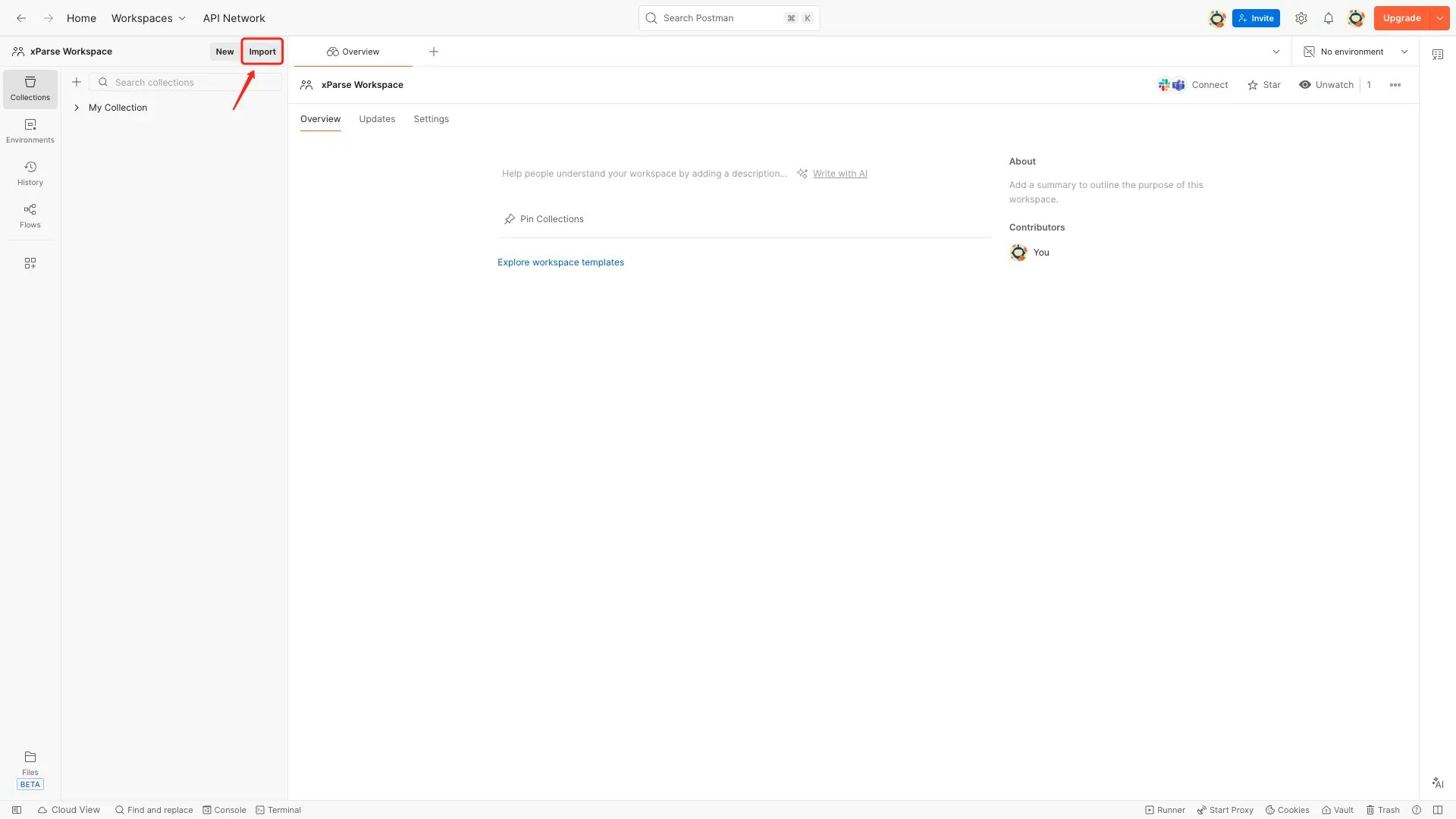
### 步骤2:打开Postman导入功能
1. 打开Postman应用
2. 点击左上角的 **Import** 按钮
 ### 步骤3:粘贴curl命令
1. 在弹出的导入窗口中,将复制的curl命令粘贴到文本框中
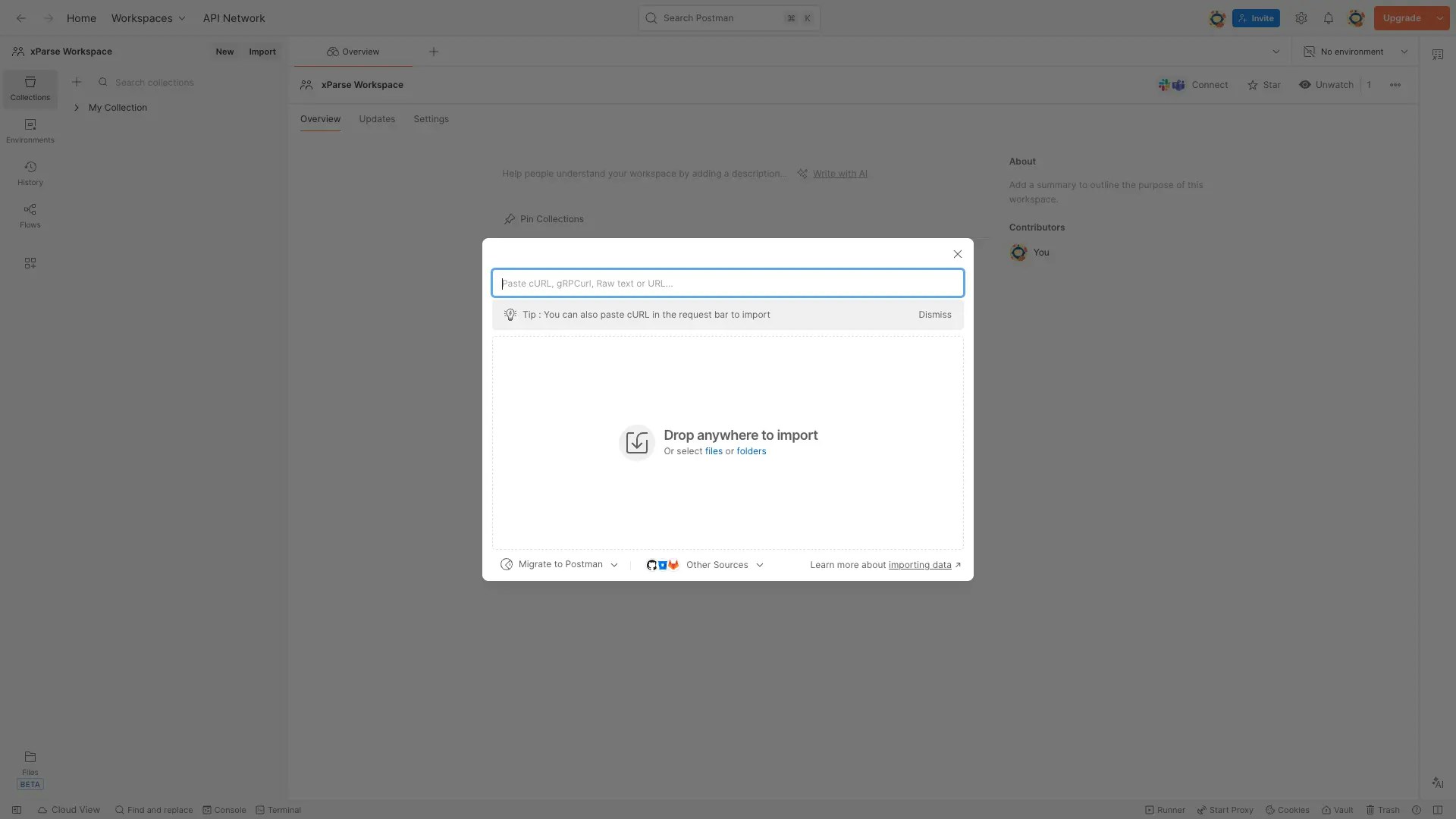
### 步骤3:粘贴curl命令
1. 在弹出的导入窗口中,将复制的curl命令粘贴到文本框中
 ### 步骤4:确认导入
1. 在预览页面确认请求信息
2. 点击 **Import Into Collection**或者**Import Without Saving** 按钮完成导入
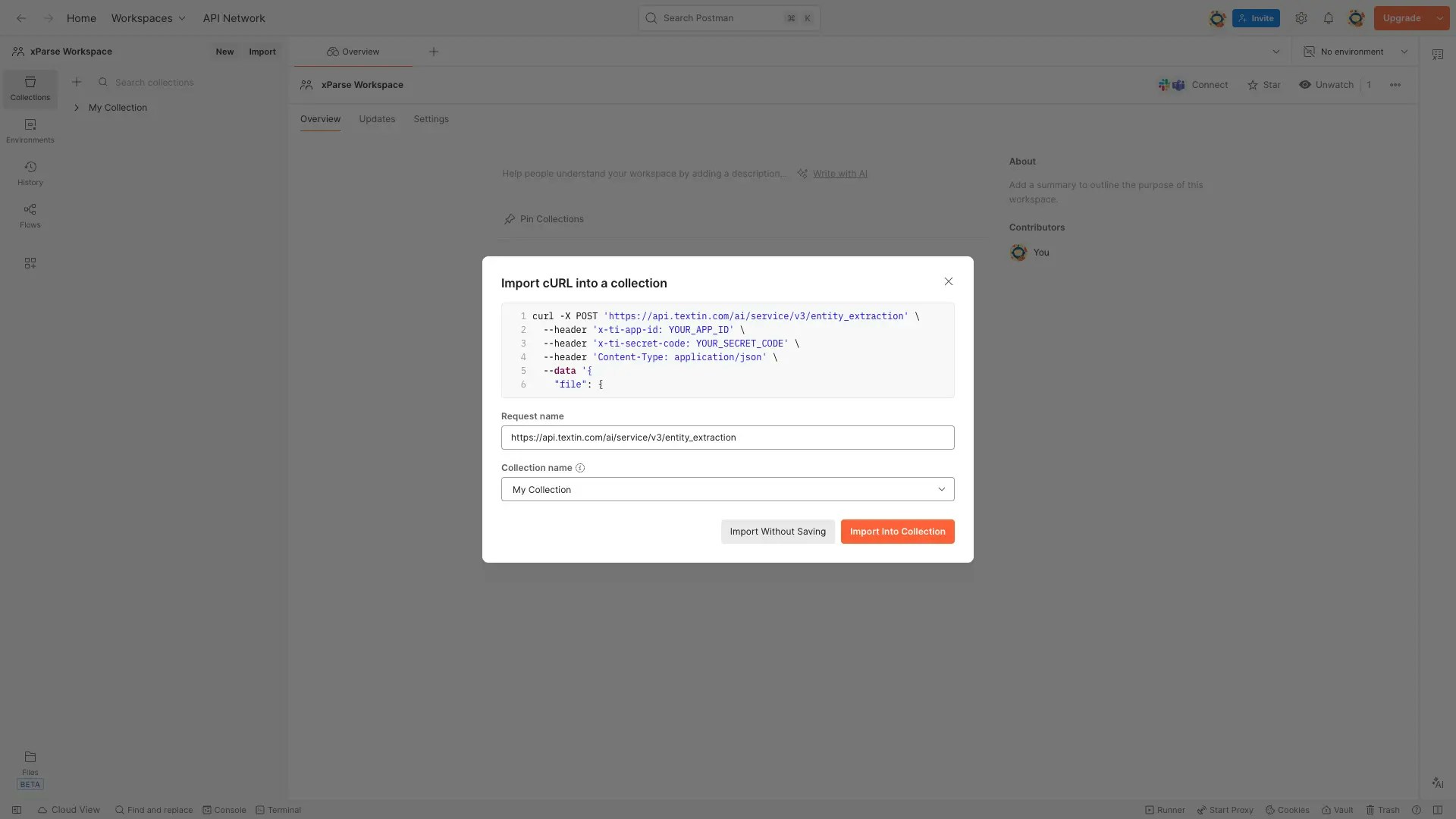
### 步骤4:确认导入
1. 在预览页面确认请求信息
2. 点击 **Import Into Collection**或者**Import Without Saving** 按钮完成导入
 ## 配置请求
### 修改API Key
1. 点击 **Headers** 标签页
2. 找到 `x-ti-app-id` 和 `x-ti-secret-code` 两个header
3. 将 `YOUR_APP_ID` 替换为您的实际x-ti-app-id
4. 将 `YOUR_SECRET_CODE` 替换为您的实际x-ti-secret-code
## 配置请求
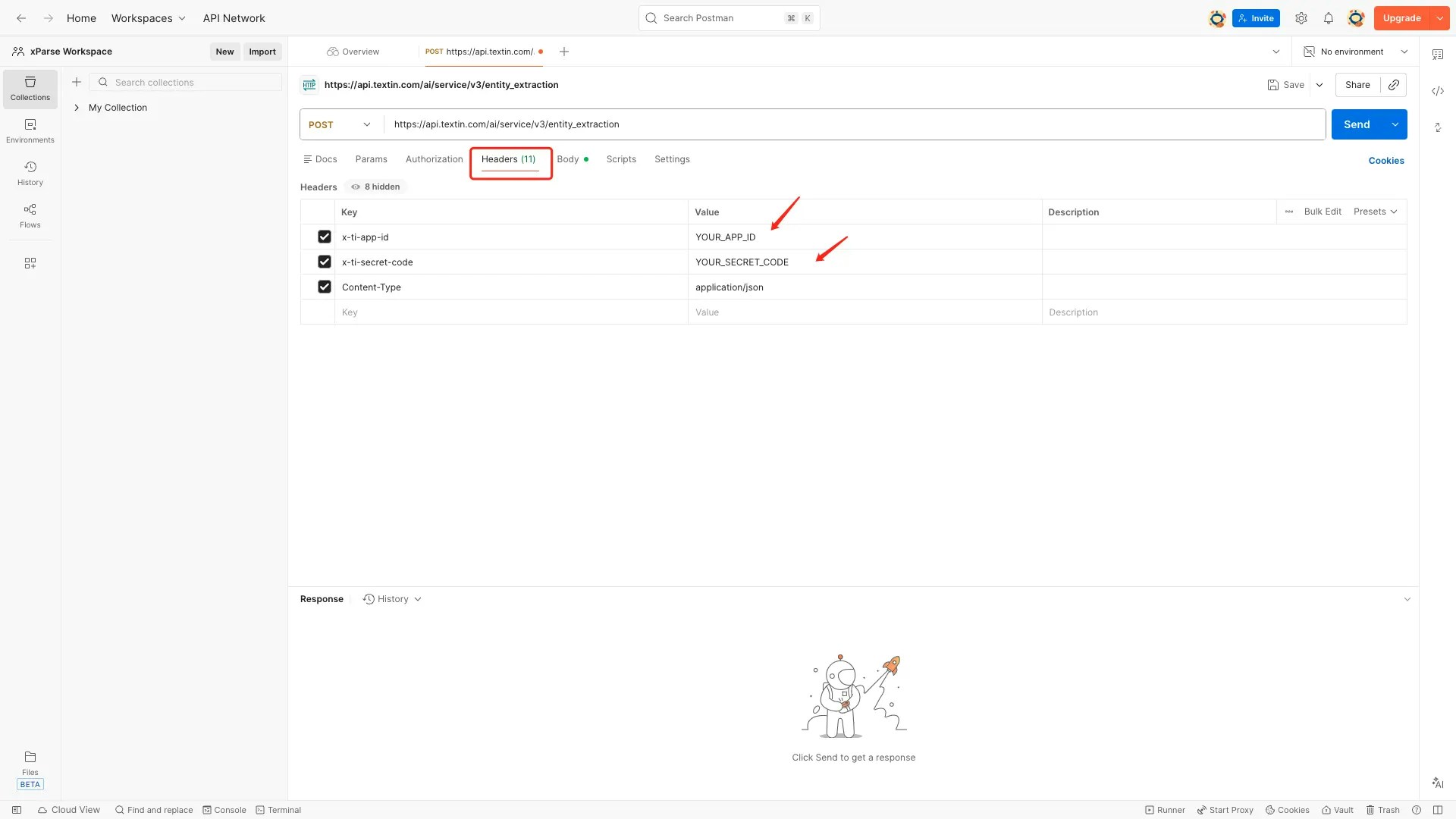
### 修改API Key
1. 点击 **Headers** 标签页
2. 找到 `x-ti-app-id` 和 `x-ti-secret-code` 两个header
3. 将 `YOUR_APP_ID` 替换为您的实际x-ti-app-id
4. 将 `YOUR_SECRET_CODE` 替换为您的实际x-ti-secret-code
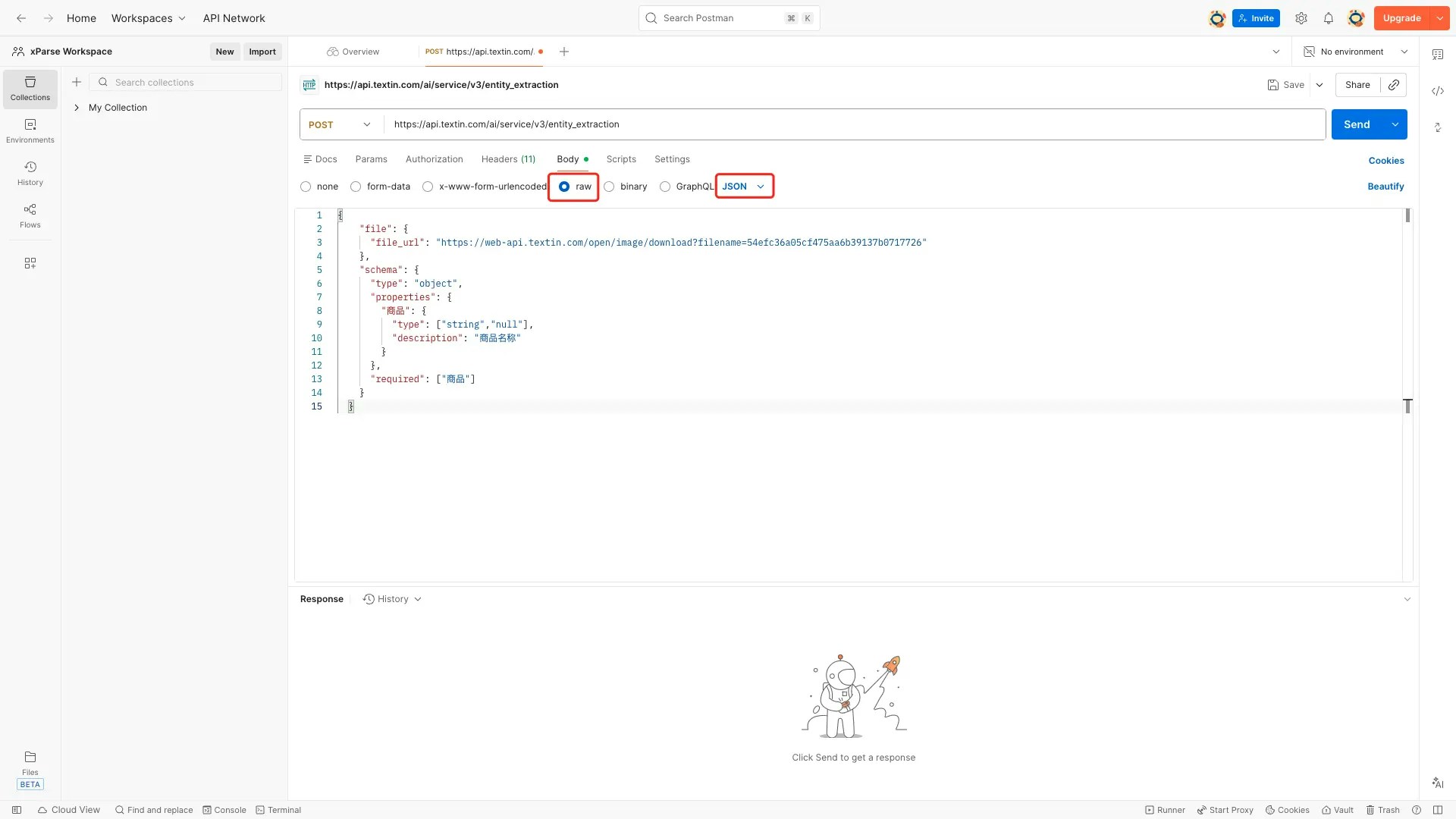
 ### 修改JSON Body
文档抽取API的核心是JSON schema配置。您可以根据需要修改Body中的内容:
1. 点击 **Body** 标签页
2. 确保Body类型为 **raw** 和 **JSON**
3. 修改JSON内容,主要包括:
**修改文件信息:**
```json theme={null}
{
"file": {
"file_url": "https://web-api.textin.com/open/image/download?filename=54efc36a05cf475aa6b39137b0717726"
},
...
}
```
或者使用base64编码的文件:
```json theme={null}
{
"file": {
"file_base64": "base64编码的文件内容"
},
...
}
```
**修改抽取schema:**
根据您的需求修改schema,例如抽取更多字段:
```json theme={null}
{
...
"schema": {
"type": "object",
"properties": {
"商品": {
"type": ["string","null"],
"description": "商品名称"
},
"价格": {
"type": ["number","null"],
"description": "商品价格"
},
"商品列表": {
"type": "array",
"description": "商品列表",
"items": {
"type": "object",
"properties": {
"名称": {
"type": ["string","null"],
"description": "商品名称"
},
"类型": {
"type": ["string","null"],
"description": "商品类型"
}
},
"required": ["名称", "类型"]
}
}
},
"required": ["商品", "价格", "商品列表"]
}
}
```
**添加解析选项(可选):**
```json theme={null}
{
...
"parse_options": {
"page_start": 1,
"page_count": 10,
"parse_mode": "scan",
"get_image": "objects",
"crop_dewarp": 0,
"remove_watermark": 0
}
}
```
**添加抽取选项(可选):**
```json theme={null}
{
...
"extract_options": {
"generate_citations": true,
"stamp": true
}
}
```
### 修改JSON Body
文档抽取API的核心是JSON schema配置。您可以根据需要修改Body中的内容:
1. 点击 **Body** 标签页
2. 确保Body类型为 **raw** 和 **JSON**
3. 修改JSON内容,主要包括:
**修改文件信息:**
```json theme={null}
{
"file": {
"file_url": "https://web-api.textin.com/open/image/download?filename=54efc36a05cf475aa6b39137b0717726"
},
...
}
```
或者使用base64编码的文件:
```json theme={null}
{
"file": {
"file_base64": "base64编码的文件内容"
},
...
}
```
**修改抽取schema:**
根据您的需求修改schema,例如抽取更多字段:
```json theme={null}
{
...
"schema": {
"type": "object",
"properties": {
"商品": {
"type": ["string","null"],
"description": "商品名称"
},
"价格": {
"type": ["number","null"],
"description": "商品价格"
},
"商品列表": {
"type": "array",
"description": "商品列表",
"items": {
"type": "object",
"properties": {
"名称": {
"type": ["string","null"],
"description": "商品名称"
},
"类型": {
"type": ["string","null"],
"description": "商品类型"
}
},
"required": ["名称", "类型"]
}
}
},
"required": ["商品", "价格", "商品列表"]
}
}
```
**添加解析选项(可选):**
```json theme={null}
{
...
"parse_options": {
"page_start": 1,
"page_count": 10,
"parse_mode": "scan",
"get_image": "objects",
"crop_dewarp": 0,
"remove_watermark": 0
}
}
```
**添加抽取选项(可选):**
```json theme={null}
{
...
"extract_options": {
"generate_citations": true,
"stamp": true
}
}
```
 ## 发送请求
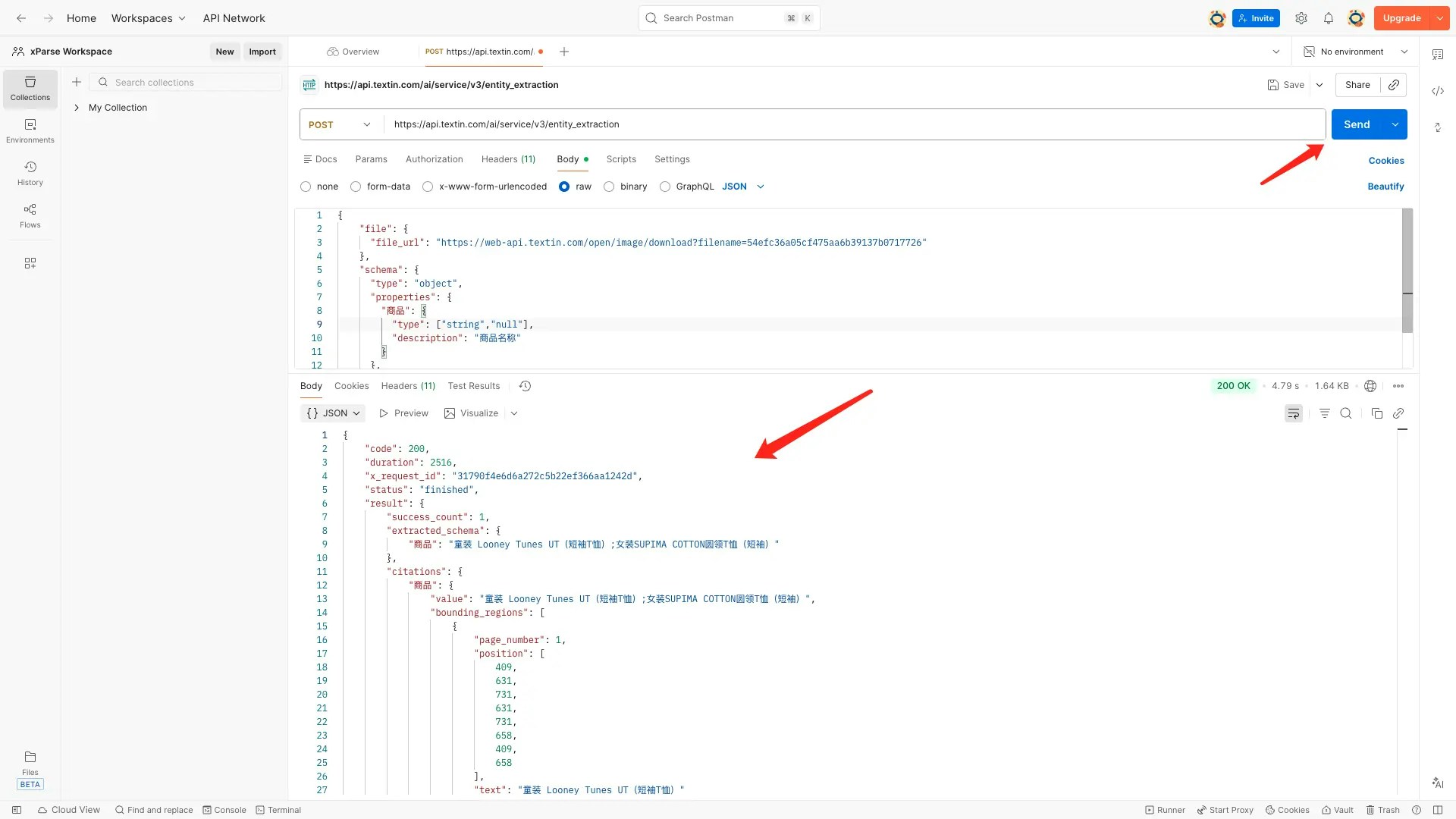
1. 确认所有配置无误后,点击右上角的 **Send** 按钮
2. 等待响应返回
3. 在下方查看响应结果
## 发送请求
1. 确认所有配置无误后,点击右上角的 **Send** 按钮
2. 等待响应返回
3. 在下方查看响应结果
 ## 查看响应结果
响应结果会显示在Postman下方的响应区域:
* **Body**:查看JSON格式的响应内容,包括:
* `extracted_schema`: 抽取的结构化数据
* `citations`: 带坐标信息的抽取结果
* `pages`: 文档页面信息
* **Headers**:查看响应头信息
* **Status**:查看HTTP状态码(200表示成功)
响应结果如上图。
## 常见问题
### Q: 如何修改要抽取的字段?
A: 在Body标签页中修改`schema`字段,根据您的需求定义字段名称、类型和描述。详细说明请参考[文档抽取快速启动](/xparse/extract-quickstart-v3)。
### Q: 响应返回400错误?
A: 请检查JSON格式是否正确,确保schema格式符合JSON Schema规范。
### Q: 响应返回401错误?
A: 请检查API Key是否正确设置,确保x-ti-app-id和x-ti-secret-code都已正确替换。
### Q: 如何保存请求?
A: 可以将请求保存到Collection中,方便后续重复使用。点击请求右侧的"Save"按钮即可。
## 相关链接
* [文档抽取快速启动](/xparse/extract-quickstart-v3)
* [Apifox调试教程](/xparse/extract-debug-apifox)
* [API参考文档](/api-reference/endpoint/extract-v3)
## 查看响应结果
响应结果会显示在Postman下方的响应区域:
* **Body**:查看JSON格式的响应内容,包括:
* `extracted_schema`: 抽取的结构化数据
* `citations`: 带坐标信息的抽取结果
* `pages`: 文档页面信息
* **Headers**:查看响应头信息
* **Status**:查看HTTP状态码(200表示成功)
响应结果如上图。
## 常见问题
### Q: 如何修改要抽取的字段?
A: 在Body标签页中修改`schema`字段,根据您的需求定义字段名称、类型和描述。详细说明请参考[文档抽取快速启动](/xparse/extract-quickstart-v3)。
### Q: 响应返回400错误?
A: 请检查JSON格式是否正确,确保schema格式符合JSON Schema规范。
### Q: 响应返回401错误?
A: 请检查API Key是否正确设置,确保x-ti-app-id和x-ti-secret-code都已正确替换。
### Q: 如何保存请求?
A: 可以将请求保存到Collection中,方便后续重复使用。点击请求右侧的"Save"按钮即可。
## 相关链接
* [文档抽取快速启动](/xparse/extract-quickstart-v3)
* [Apifox调试教程](/xparse/extract-debug-apifox)
* [API参考文档](/api-reference/endpoint/extract-v3)