> ## Documentation Index
> Fetch the complete documentation index at: https://docs.textin.com/llms.txt
> Use this file to discover all available pages before exploring further.
# 智能信息抽取实战:从文档到结构化数据
> 5分钟上手 xParse 信息抽取,让发票、合同、订单等文档自动变成结构化 JSON 数据
本教程将带您从零开始,学习如何使用 xParse Pipeline 的 Extract 功能从文档中提取结构化信息。通过定义 JSON Schema,您可以轻松实现发票、合同、订单等文档的自动化信息提取。
## 为什么需要信息抽取?
在日常业务中,我们经常需要从各种文档中提取结构化信息:
* **财务自动化**:从发票中提取金额、税号、日期等关键信息
* **合同管理**:从合同中提取签约方、金额、有效期等重要条款
* **订单处理**:从订单中提取商品列表、数量、价格等明细信息
* **数据录入**:将非结构化文档转换为结构化 JSON,自动录入业务系统
传统方式需要人工逐条提取,效率低且容易出错。xParse 的信息抽取功能通过 AI 技术,让文档自动变成结构化数据,大幅提升处理效率。
## 使用场景
信息抽取适用于以下场景:
* **表单数据提取**:从发票、合同、订单等表单中提取关键信息
* **结构化数据生成**:将非结构化文档转换为结构化 JSON 数据
* **数据录入自动化**:自动提取文档数据并录入到业务系统
* **信息验证**:提取信息后进行数据验证和校验
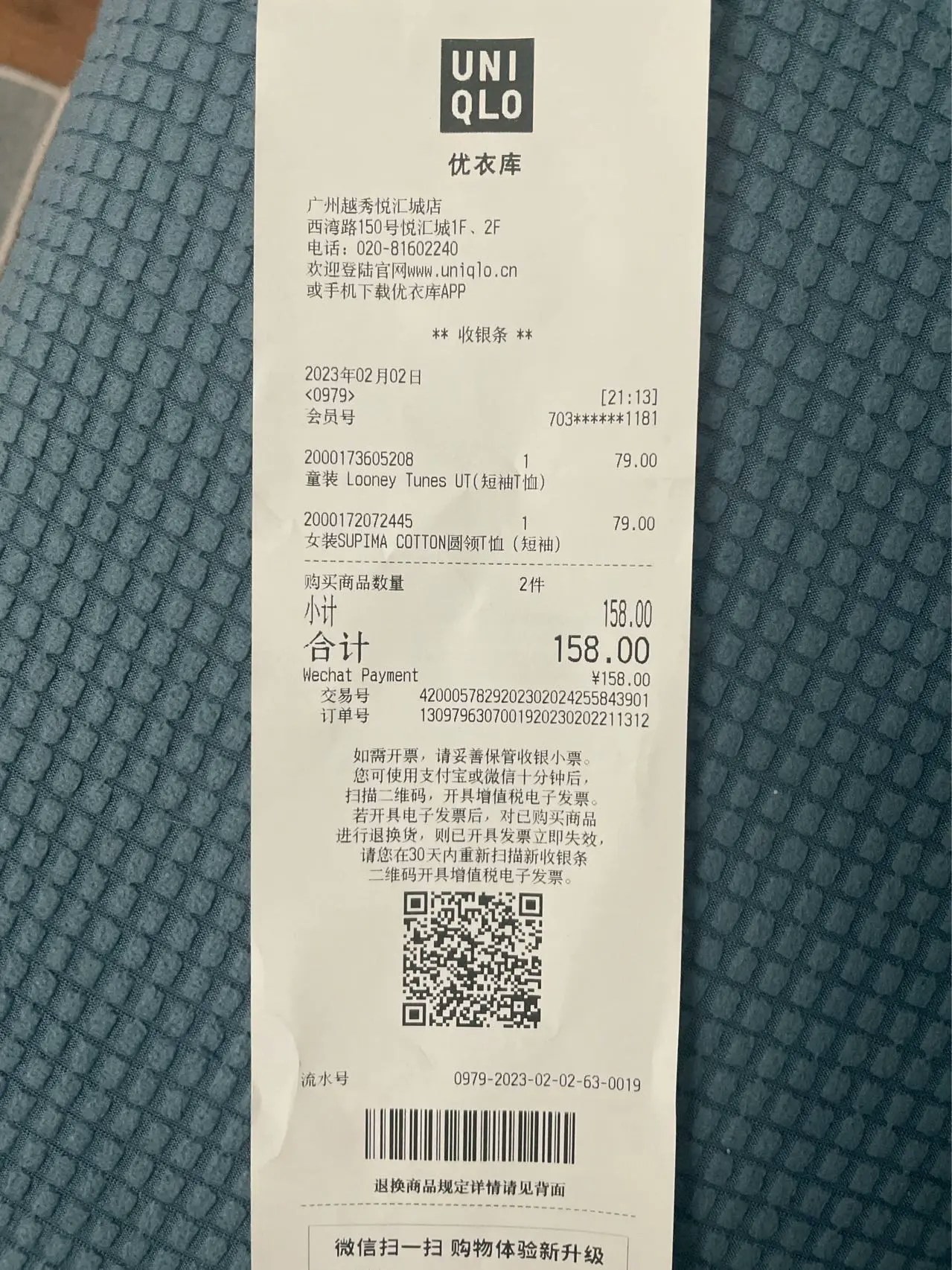
这里为您提供了一份Textin官方示例图片,您可以点击下载使用:[文档抽取png示例.png](https://web-api.textin.com/open/image/download?filename=54efc36a05cf475aa6b39137b0717726)
 ## 环境准备
### 步骤 1:安装依赖
首先安装必要的依赖:
```bash theme={null}
python -m venv .venv && source .venv/bin/activate
pip install --upgrade xparse-client
```
### 步骤 2:获取 API Key
使用 xParse 处理文档前,需要先获取 API Key。请登录后前往 [TextIn 工作台 - 账号与开发者信息](https://www.textin.com/console/dashboard/setting) 获取:
* `x-ti-app-id`
* `x-ti-secret-code`
> 提示:详细获取方式请参考 [API Key 文档](/pipeline/api-key)
### 步骤 3:创建配置文件(可选)
为了方便管理配置,建议创建 `.env` 文件存储 API Key:
```bash theme={null}
# .env
X_TI_APP_ID=your-app-id
X_TI_SECRET_CODE=your-secret-code
```
然后在代码中使用 `python-dotenv` 加载:
```bash theme={null}
pip install python-dotenv
```
```python theme={null}
from dotenv import load_dotenv
import os
load_dotenv()
api_headers = {
'x-ti-app-id': os.getenv('X_TI_APP_ID'),
'x-ti-secret-code': os.getenv('X_TI_SECRET_CODE')
}
```
## 快速开始
### 步骤 1:准备文档
创建一个测试目录,放入要处理的文档(PDF、图片等):
```bash theme={null}
mkdir -p ./documents
# 将您的文档放入 ./documents 目录
```
### 步骤 2:编写代码
创建 `extract_demo.py` 文件,添加以下代码:
> **重要提示**:Extract 必须与 Parse 组合使用,且必须在 Parse 之后。
```python theme={null}
from xparse_client import (
Pipeline,
LocalSource,
LocalDestination,
Stage,
ParseConfig,
ExtractConfig
)
# 创建数据源
source = LocalSource(
directory='./documents',
pattern=['*.png'] # 支持多种格式:['*.pdf', '*.jpg', '*.png']
)
# 创建目标存储
destination = LocalDestination(
output_dir='./output'
)
# 创建解析配置
parse_config = ParseConfig(
provider='textin' # 使用 textin 解析引擎,精度和速度俱佳
)
# 创建抽取配置
extract_config = ExtractConfig(
schema={
"type": "object",
"properties": {
"商品": {
"type": ["string", "null"],
"description": "商品名称"
},
"商品列表": {
"type": "array",
"description": "商品列表",
"items": {
"type": "object",
"properties": {
"名称": {
"type": ["string", "null"],
"description": "商品名称"
},
"类型": {
"type": ["string", "null"],
"description": "商品类型"
}
},
"required": ["名称", "类型"]
}
}
},
"required": ["商品", "商品列表"]
},
generate_citations=False, # 是否生成坐标信息
stamp=False # 是否识别印章
)
# 创建 Pipeline
pipeline = Pipeline(
source=source,
destination=destination,
api_base_url='https://api.textin.com/api/xparse',
api_headers={
'x-ti-app-id': 'your-app-id', # 替换为您的 app-id
'x-ti-secret-code': 'your-secret-code' # 替换为您的 secret-code
},
stages=[
Stage(
type='parse',
config=parse_config
),
Stage(
type='extract',
config=extract_config
)
]
)
# 运行 Pipeline
pipeline.run()
```
### 步骤 3:运行代码
将代码保存为 `extract_demo.py`,然后运行:
```bash theme={null}
python extract_demo.py
```
您将看到类似以下的输出:
```
============================================================
Pipeline 初始化完成
Parse Config: ParseConfig(provider='textin')
Extract Config: ExtractConfig(schema={...}, generate_citations=False, stamp=False)
============================================================
→ 列出文件...
✓ 本地找到 1 个文件
进度: [1/1]
============================================================
处理文件: 文档抽取示例.png
→ 读取文件...
✓ 文件读取完成: 2376966 bytes
→ 调用 Pipeline 接口: 文档抽取示例.png
✓ Pipeline 接口返回 x_request_id: 61d4217c6c64517f86b6d3dec6a8519d
✓ Extract 完成:
- 原始元素: 44
- 提取结果类型: dict
→ 写入目的地...
✓ 写入本地: ./output/文档抽取示例.json
✓✓✓ 文件处理成功: 文档抽取示例.png
...
```
### 步骤 4:查看结果
处理完成后,结果会保存在 `./output` 目录中。每个文档对应一个 JSON 文件,包含提取的结构化数据:
```json theme={null}
{
"商品": "童装 Looney Tunes UT(短袖T恤);女装SUPIMA COTTON圆领T恤(短袖)",
"商品列表": [
{
"名称": "童装 Looney Tunes UT(短袖T恤)",
"类型": "童装"
},
{
"名称": "女装SUPIMA COTTON圆领T恤(短袖)",
"类型": "女装"
}
]
}
```
## 定义 JSON Schema
### Schema 结构
JSON Schema 必须遵循以下结构:
```json theme={null}
{
"type": "object",
"properties": {
"field_name": {
"type": ["string", "null"],
"description": "Field description"
}
},
"required": ["field_name"]
}
```
### 支持的字段类型
* **string**:字符串
* **number**:数字
* **integer**:整数
* **enum**:枚举
* **object**:对象,对象内可以包含 string、number、integer、enum
* **array**:数组,数组内可以包含 string、number、integer、enum、object
### Schema 示例
#### 示例 1:简单字段抽取
```json theme={null}
{
"type": "object",
"properties": {
"发票号码": {
"type": ["string", "null"],
"description": "发票号码"
},
"开票日期": {
"type": ["string", "null"],
"description": "开票日期"
},
"金额": {
"type": ["number", "null"],
"description": "发票金额"
}
},
"required": ["发票号码", "开票日期", "金额"]
}
```
#### 示例 2:数组字段抽取
```json theme={null}
{
"type": "object",
"properties": {
"商品列表": {
"type": "array",
"description": "商品列表",
"items": {
"type": "object",
"properties": {
"名称": {
"type": ["string", "null"],
"description": "商品名称"
},
"数量": {
"type": ["integer", "null"],
"description": "商品数量"
},
"单价": {
"type": ["number", "null"],
"description": "商品单价"
}
},
"required": ["名称", "数量", "单价"]
}
}
},
"required": ["商品列表"]
}
```
## 启用坐标信息和印章识别
### 启用坐标信息
当 `generate_citations=True` 时,返回结果中会包含每个字段的坐标位置:
```python theme={null}
extract_config = ExtractConfig(
schema={...},
generate_citations=True, # 启用坐标信息
stamp=False
)
```
返回结果中的 `citations` 字段包含:
* **value**:该字段的抽取结果
* **bounding\_regions**:抽取结果对应的坐标位置
* **page\_number**:所在页码
* **text**:边界框内的文本内容
* **position**:坐标位置(8个数字的数组)
### 启用印章识别
当 `stamp=True` 时,返回结果中会包含文档中的印章信息:
```python theme={null}
extract_config = ExtractConfig(
schema={...},
generate_citations=False,
stamp=True # 启用印章识别
)
```
返回结果中的 `stamps` 字段包含:
* **color**:印章颜色
* **position**:印章坐标
* **stamp\_shape**:印章形状
* **type**:印章类型
* **value**:印章文本内容
## Pipeline Extract vs Extract API
### Pipeline Extract
**优点**:
* 支持批量处理
* pipeline SDK 可以灵活配置连接器
**缺点**:
* 需要配置两个stage
* 不能与chunk、embed同时使用
**适用场景**:
* 需要批量处理文档
### Extract API
**优点**:
* 使用简单
* 内部自动调用Parse
**缺点**:
* 需要自行实现批量处理
**适用场景**:
* 只需要抽取结果
* 处理单个文档
## 最佳实践
1. **Schema 设计**:
* 字段名称要具体明确
* 字段描述要详细,帮助模型理解
* 合理使用 required 字段
2. **字段类型选择**:
* 数字字段使用 number 或 integer
* 文本字段使用 string
* 列表数据使用 array
3. **性能优化**:
* 字段数量不超过100个(叶子节点)
* 嵌套层级不超过3级
* 不需要坐标信息时,设置 `generate_citations=False`
4. **错误处理**:
* 检查返回结果中的 status
* 处理抽取失败的情况
* 验证抽取结果的完整性
## 常见问题
### Q: Extract 可以与 Chunk、Embed 同时使用吗?
A: 不可以。Extract 只能与 Parse 组合使用,不能与 Chunk、Embed 同时使用。
### Q: 如何提高抽取准确率?
A:
* 提供详细的字段描述
* 使用具体的字段名称
* 合理设置 required 字段
* 根据文档类型选择合适的 Parse 引擎
### Q: 抽取结果中的 null 值是什么意思?
A: null 值表示该字段在文档中未找到或无法提取。这是正常情况,因为不是所有文档都包含所有字段。
## 相关文档
* [信息抽取 - Extract](/pipeline/extract) - 了解详细的配置参数
* [文档解析 - Parse](/pipeline/parse) - 了解解析配置
* [Pipeline API](/api-reference/endpoint/pipeline) - 了解 Pipeline API 的详细参数
* [Parse同步API](/api-reference/endpoint/parse-sync) - 了解Parse同步API
* [Parse异步API](/api-reference/endpoint/parse-async) - 了解Parse异步API
* [Parse异步状态查询API](/api-reference/endpoint/parse-async-status) - 了解Parse异步任务状态和结果查询API
* [Extract同步API](/api-reference/endpoint/extract-sync) - 了解Extract API
## 环境准备
### 步骤 1:安装依赖
首先安装必要的依赖:
```bash theme={null}
python -m venv .venv && source .venv/bin/activate
pip install --upgrade xparse-client
```
### 步骤 2:获取 API Key
使用 xParse 处理文档前,需要先获取 API Key。请登录后前往 [TextIn 工作台 - 账号与开发者信息](https://www.textin.com/console/dashboard/setting) 获取:
* `x-ti-app-id`
* `x-ti-secret-code`
> 提示:详细获取方式请参考 [API Key 文档](/pipeline/api-key)
### 步骤 3:创建配置文件(可选)
为了方便管理配置,建议创建 `.env` 文件存储 API Key:
```bash theme={null}
# .env
X_TI_APP_ID=your-app-id
X_TI_SECRET_CODE=your-secret-code
```
然后在代码中使用 `python-dotenv` 加载:
```bash theme={null}
pip install python-dotenv
```
```python theme={null}
from dotenv import load_dotenv
import os
load_dotenv()
api_headers = {
'x-ti-app-id': os.getenv('X_TI_APP_ID'),
'x-ti-secret-code': os.getenv('X_TI_SECRET_CODE')
}
```
## 快速开始
### 步骤 1:准备文档
创建一个测试目录,放入要处理的文档(PDF、图片等):
```bash theme={null}
mkdir -p ./documents
# 将您的文档放入 ./documents 目录
```
### 步骤 2:编写代码
创建 `extract_demo.py` 文件,添加以下代码:
> **重要提示**:Extract 必须与 Parse 组合使用,且必须在 Parse 之后。
```python theme={null}
from xparse_client import (
Pipeline,
LocalSource,
LocalDestination,
Stage,
ParseConfig,
ExtractConfig
)
# 创建数据源
source = LocalSource(
directory='./documents',
pattern=['*.png'] # 支持多种格式:['*.pdf', '*.jpg', '*.png']
)
# 创建目标存储
destination = LocalDestination(
output_dir='./output'
)
# 创建解析配置
parse_config = ParseConfig(
provider='textin' # 使用 textin 解析引擎,精度和速度俱佳
)
# 创建抽取配置
extract_config = ExtractConfig(
schema={
"type": "object",
"properties": {
"商品": {
"type": ["string", "null"],
"description": "商品名称"
},
"商品列表": {
"type": "array",
"description": "商品列表",
"items": {
"type": "object",
"properties": {
"名称": {
"type": ["string", "null"],
"description": "商品名称"
},
"类型": {
"type": ["string", "null"],
"description": "商品类型"
}
},
"required": ["名称", "类型"]
}
}
},
"required": ["商品", "商品列表"]
},
generate_citations=False, # 是否生成坐标信息
stamp=False # 是否识别印章
)
# 创建 Pipeline
pipeline = Pipeline(
source=source,
destination=destination,
api_base_url='https://api.textin.com/api/xparse',
api_headers={
'x-ti-app-id': 'your-app-id', # 替换为您的 app-id
'x-ti-secret-code': 'your-secret-code' # 替换为您的 secret-code
},
stages=[
Stage(
type='parse',
config=parse_config
),
Stage(
type='extract',
config=extract_config
)
]
)
# 运行 Pipeline
pipeline.run()
```
### 步骤 3:运行代码
将代码保存为 `extract_demo.py`,然后运行:
```bash theme={null}
python extract_demo.py
```
您将看到类似以下的输出:
```
============================================================
Pipeline 初始化完成
Parse Config: ParseConfig(provider='textin')
Extract Config: ExtractConfig(schema={...}, generate_citations=False, stamp=False)
============================================================
→ 列出文件...
✓ 本地找到 1 个文件
进度: [1/1]
============================================================
处理文件: 文档抽取示例.png
→ 读取文件...
✓ 文件读取完成: 2376966 bytes
→ 调用 Pipeline 接口: 文档抽取示例.png
✓ Pipeline 接口返回 x_request_id: 61d4217c6c64517f86b6d3dec6a8519d
✓ Extract 完成:
- 原始元素: 44
- 提取结果类型: dict
→ 写入目的地...
✓ 写入本地: ./output/文档抽取示例.json
✓✓✓ 文件处理成功: 文档抽取示例.png
...
```
### 步骤 4:查看结果
处理完成后,结果会保存在 `./output` 目录中。每个文档对应一个 JSON 文件,包含提取的结构化数据:
```json theme={null}
{
"商品": "童装 Looney Tunes UT(短袖T恤);女装SUPIMA COTTON圆领T恤(短袖)",
"商品列表": [
{
"名称": "童装 Looney Tunes UT(短袖T恤)",
"类型": "童装"
},
{
"名称": "女装SUPIMA COTTON圆领T恤(短袖)",
"类型": "女装"
}
]
}
```
## 定义 JSON Schema
### Schema 结构
JSON Schema 必须遵循以下结构:
```json theme={null}
{
"type": "object",
"properties": {
"field_name": {
"type": ["string", "null"],
"description": "Field description"
}
},
"required": ["field_name"]
}
```
### 支持的字段类型
* **string**:字符串
* **number**:数字
* **integer**:整数
* **enum**:枚举
* **object**:对象,对象内可以包含 string、number、integer、enum
* **array**:数组,数组内可以包含 string、number、integer、enum、object
### Schema 示例
#### 示例 1:简单字段抽取
```json theme={null}
{
"type": "object",
"properties": {
"发票号码": {
"type": ["string", "null"],
"description": "发票号码"
},
"开票日期": {
"type": ["string", "null"],
"description": "开票日期"
},
"金额": {
"type": ["number", "null"],
"description": "发票金额"
}
},
"required": ["发票号码", "开票日期", "金额"]
}
```
#### 示例 2:数组字段抽取
```json theme={null}
{
"type": "object",
"properties": {
"商品列表": {
"type": "array",
"description": "商品列表",
"items": {
"type": "object",
"properties": {
"名称": {
"type": ["string", "null"],
"description": "商品名称"
},
"数量": {
"type": ["integer", "null"],
"description": "商品数量"
},
"单价": {
"type": ["number", "null"],
"description": "商品单价"
}
},
"required": ["名称", "数量", "单价"]
}
}
},
"required": ["商品列表"]
}
```
## 启用坐标信息和印章识别
### 启用坐标信息
当 `generate_citations=True` 时,返回结果中会包含每个字段的坐标位置:
```python theme={null}
extract_config = ExtractConfig(
schema={...},
generate_citations=True, # 启用坐标信息
stamp=False
)
```
返回结果中的 `citations` 字段包含:
* **value**:该字段的抽取结果
* **bounding\_regions**:抽取结果对应的坐标位置
* **page\_number**:所在页码
* **text**:边界框内的文本内容
* **position**:坐标位置(8个数字的数组)
### 启用印章识别
当 `stamp=True` 时,返回结果中会包含文档中的印章信息:
```python theme={null}
extract_config = ExtractConfig(
schema={...},
generate_citations=False,
stamp=True # 启用印章识别
)
```
返回结果中的 `stamps` 字段包含:
* **color**:印章颜色
* **position**:印章坐标
* **stamp\_shape**:印章形状
* **type**:印章类型
* **value**:印章文本内容
## Pipeline Extract vs Extract API
### Pipeline Extract
**优点**:
* 支持批量处理
* pipeline SDK 可以灵活配置连接器
**缺点**:
* 需要配置两个stage
* 不能与chunk、embed同时使用
**适用场景**:
* 需要批量处理文档
### Extract API
**优点**:
* 使用简单
* 内部自动调用Parse
**缺点**:
* 需要自行实现批量处理
**适用场景**:
* 只需要抽取结果
* 处理单个文档
## 最佳实践
1. **Schema 设计**:
* 字段名称要具体明确
* 字段描述要详细,帮助模型理解
* 合理使用 required 字段
2. **字段类型选择**:
* 数字字段使用 number 或 integer
* 文本字段使用 string
* 列表数据使用 array
3. **性能优化**:
* 字段数量不超过100个(叶子节点)
* 嵌套层级不超过3级
* 不需要坐标信息时,设置 `generate_citations=False`
4. **错误处理**:
* 检查返回结果中的 status
* 处理抽取失败的情况
* 验证抽取结果的完整性
## 常见问题
### Q: Extract 可以与 Chunk、Embed 同时使用吗?
A: 不可以。Extract 只能与 Parse 组合使用,不能与 Chunk、Embed 同时使用。
### Q: 如何提高抽取准确率?
A:
* 提供详细的字段描述
* 使用具体的字段名称
* 合理设置 required 字段
* 根据文档类型选择合适的 Parse 引擎
### Q: 抽取结果中的 null 值是什么意思?
A: null 值表示该字段在文档中未找到或无法提取。这是正常情况,因为不是所有文档都包含所有字段。
## 相关文档
* [信息抽取 - Extract](/pipeline/extract) - 了解详细的配置参数
* [文档解析 - Parse](/pipeline/parse) - 了解解析配置
* [Pipeline API](/api-reference/endpoint/pipeline) - 了解 Pipeline API 的详细参数
* [Parse同步API](/api-reference/endpoint/parse-sync) - 了解Parse同步API
* [Parse异步API](/api-reference/endpoint/parse-async) - 了解Parse异步API
* [Parse异步状态查询API](/api-reference/endpoint/parse-async-status) - 了解Parse异步任务状态和结果查询API
* [Extract同步API](/api-reference/endpoint/extract-sync) - 了解Extract API